shadcn.io is an independent project built on shadcn/ui
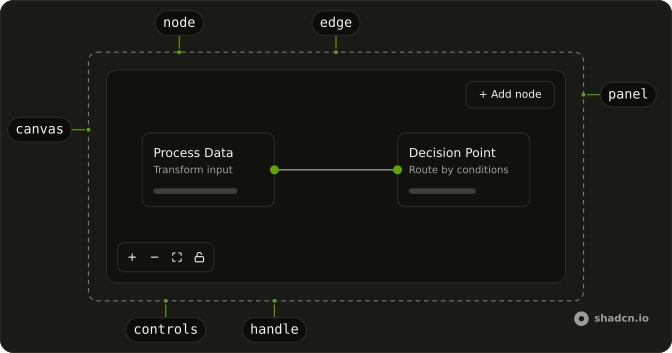
Nodes sit on a dotted board, wired output to input by curved edges, and the board pans and zooms under them.
Use it to show or edit an agent's workflow: the steps a run takes, the tools it calls, where it branches. Each node is a Card you fill like any other, so a step can hold a model name, badges or a status. A straight list of steps reads better as a Plan or a Trace; a canvas earns its place when the steps branch and join. In React, the canvas is written for this page: pointer events, a ResizeObserver per node and three CSS variables for the view, with no flow library underneath.
Installation
Anatomy
Canvas
├── CanvasEdge (one per edge)
├── CanvasNode (one per node, with its handles)
│   ├── CanvasNodeHeader
│   │   ├── CanvasNodeTitle
│   │   ├── CanvasNodeDescription
│   │   └── CanvasNodeAction
│   ├── CanvasNodeContent
│   ├── CanvasNodeFooter
│   └── CanvasToolbar
├── CanvasConnection
├── CanvasControls
└── CanvasPanel
Usage
import {
  Canvas, CanvasConnection, CanvasControls, CanvasEdge, CanvasNode,
  CanvasNodeContent, CanvasNodeDescription, CanvasNodeHeader,
  CanvasNodeTitle,
} from "@/components/ui/canvas";<Canvas className="h-96">
<CanvasEdge source="plan" target="code" type="animated" />
<CanvasNode className="w-56" id="plan" x={0} y={0}>
<CanvasNodeHeader>
<CanvasNodeTitle>Plan</CanvasNodeTitle>
<CanvasNodeDescription>Splits the task into steps</CanvasNodeDescription>
</CanvasNodeHeader>
<CanvasNodeContent>4 steps</CanvasNodeContent>
</CanvasNode>
<CanvasNode className="w-56" id="code" x={300} y={40}>
<CanvasNodeHeader>
<CanvasNodeTitle>Code</CanvasNodeTitle>
<CanvasNodeDescription>Writes and tests each step</CanvasNodeDescription>
</CanvasNodeHeader>
<CanvasNodeContent>Running step 2</CanvasNodeContent>
</CanvasNode>
<CanvasConnection />
<CanvasControls />
</Canvas>Give the canvas a height: it fills its box, and its nodes are placed in it, not stacked in the page. Positions are in canvas units, x from the inline start and y down; the view fits them all once they're measured, so where 0, 0 lands on screen doesn't matter.
Accessibility
The canvas is an application region named Canvas, so a screen reader passes it the keys. Each node is a focusable group named by its CanvasNodeTitle, and its handles are buttons: press a node's output, then another node's input, and they connect, with no dragging. A polite live region says where a node was moved and what was connected. The zoom, fit and lock buttons are named, and lock is a toggle (aria-pressed). In right-to-left text the flow mirrors: a node's input is on its right, and the arrow keys move it the way they point.
- Tab
- Moves between the canvas, its nodes, their handles and the panels.
- Arrow Right
- On a node, moves it 10 units that way; on the canvas, pans the view. The other arrows likewise.
- Shift+Arrow Right
- On a node, moves it 50 units.
- Enter
- On a node, selects it or clears it. On an output handle, starts a connection; on an input, ends it there.
- +
- Zooms in, around the middle of the view.
- -
- Zooms out.
- 0
- Fits every node in view.
- Escape
- Clears the selection and stops a connection.
Demos
Node
Four nodes of a retrieval step: User Input and Context feed AI Agent, which answers in Response. CanvasNode is a Card, so its parts are a Card's: a header with a title, a description and an action (the agent's settings button), content with two Badges, and a footer. handles takes { source, target }: the trigger has an output only, the response an input only. Set the width on the node with className; it holds that width at any zoom.
Edge
Three edges, one of each type. animated runs a dot along the line, from the output to the input, for a link that is carrying work right now. The default is a plain line, and temporary is dashed, for a branch that hasn't run or a link the agent has proposed. Each edge reads its two nodes' boxes, so it follows them when they move. With reduced motion the dot stops halfway.
Connection
Three nodes and no edges: drag from a node's output to another node and let go anywhere on it. CanvasConnection draws the line while you drag, and onConnect on the canvas gets { source, target } when you drop; the demo adds an edge for it. From the keyboard, press an output handle, then another node's input. A node never connects to itself, and the edge list is yours, so skipping a duplicate is up to you.
Controls
CanvasControls puts zoom in, zoom out, fit view and lock in a row at the bottom of the canvas: orientation is horizontal and position is bottom-center. By default they stand in a column at bottom-start. Lock stops nodes being moved, selected or connected; the view still pans and zooms. showZoom, showFitView and showInteractive hide a button each, and children add your own after them.
Panel
Two panels over one node: three icon buttons at top-start and a node count at bottom-end. A panel stays where it is while the view pans and zooms, and a press on it never reaches the canvas, so its buttons can't start a pan. position takes the four logical corners and top-center or bottom-center. Keep panels small: the board is the content.
Toolbar
Each node holds a CanvasToolbar, shown while the node is selected: Node B starts selected (defaultValue on the canvas). Click a node to move the toolbar to it; Escape or a click on the board hides it. Duplicate adds a copy below, and delete removes the node from the list. The toolbar floats under its node, or over it with position="top", and keeps its size at any zoom.
Migrating from AI SDK Elements
AI Elements' canvas is React Flow (opens in a new tab) with its own styles: nodes and edges are arrays, drawn through nodeTypes and edgeTypes. Here they are children, so there are no arrays to register and no @xyflow/react to install. The part names gain a Canvas prefix, because Node, Edge, Panel and Toolbar are browser globals and other components' names.
| AI SDK Elements | shadcn.io |
|---|---|
Canvas with nodes, edges, nodeTypes, edgeTypes | Canvas, with a CanvasNode and a CanvasEdge child for each |
Node in a nodeTypes component, placed by position | CanvasNode with id, x and y (or position and onPositionChange) |
NodeHeader, NodeTitle, NodeDescription, NodeAction, NodeContent, NodeFooter | CanvasNodeHeader, CanvasNodeTitle, CanvasNodeDescription, CanvasNodeAction, CanvasNodeContent, CanvasNodeFooter |
Edge.Animated, Edge.Temporary | <CanvasEdge type="animated" />, type="temporary" |
connectionLineComponent={Connection} | <CanvasConnection /> |
Controls, Panel, Toolbar | CanvasControls, CanvasPanel, CanvasToolbar |
position="top-left", "top-right"… | position="top-start", "top-end"… |
onConnect with addEdge | onConnect({ source, target }): add the edge to your list |
fitViewOptions={{ padding }} | fitViewPadding |
Left out of React Flow: edge selection and deleting with Backspace, edge labels and arrowheads, box selection and multi-select, snapping to a grid, a minimap, top and bottom handles and more than one handle per side, and pinch zoom on touch screens (trackpads pinch). Wheel zooms by default, where AI Elements pans: set panOnScroll for its behavior.
Migrate the canvas in components/ai-elements/ (canvas.tsx, node.tsx, edge.tsx, connection.tsx, controls.tsx, panel.tsx, toolbar.tsx) from AI SDK Elements to the shadcn.io Canvas component.

1. Read https://kit.dev/ui/radix/canvas.md and run the command in its Installation section.
2. Where a Canvas is given nodes and edges arrays, render a CanvasNode for each node (id, x and y from its position, the nodeTypes component's parts inside it) and a CanvasEdge for each edge (source, target, and type "animated" or "temporary" for Edge.Animated and Edge.Temporary).
3. Rename the parts: Node to CanvasNode, NodeHeader to CanvasNodeHeader (and the other Node parts likewise), Controls to CanvasControls, Panel to CanvasPanel, Toolbar to CanvasToolbar. Replace connectionLineComponent={Connection} with a <CanvasConnection /> child, and left and right in panel positions with start and end.
4. Replace onConnect's addEdge with adding { source, target } to the edges state.
5. Remove @xyflow/react, its stylesheet and ReactFlowProvider, then run the type checker and fix any errors.
FAQ
Does the Canvas component need React Flow?
No. It is its own small engine: pointer events with capture for dragging and panning, a ResizeObserver per node for the edges, and three CSS variables for the view, so it ports to Vue, Svelte and Solid as written. It covers what AI Elements' canvas shows, and leaves out React Flow's edge selection, edge labels and arrowheads, box selection, grid snapping and minimap; the Migrating section lists them.
How do I add nodes and edges to the Canvas in React?
Render them as children: a CanvasNode with an id, x and y for each node, and a CanvasEdge with source and target ids for each edge. Keep both lists in state and map over them, as the first demo does with its Add node button. An edge whose node isn't there draws nothing.
How do I save where someone moved a node?
Pass onPositionChange to the CanvasNode: it gets { x, y } after each drag step and each arrow key. To own the place yourself, also pass position and update it there; without it the node keeps its own place, starting from x and y.
Can people connect nodes with the keyboard?
Yes. Every handle is a button: press a node's output, then another node's input, and onConnect gets { source, target }, as a drag would. While a connection waits, the inputs light up and a live region says which node it starts from; Escape stops it. The Connection demo starts empty, to try both ways.
How do I change how the Canvas pans and zooms?
Drag the board to pan, and use the wheel or a pinch to zoom around the pointer, between minZoom (0.25) and maxZoom (2). panOnScroll makes the wheel pan, with Ctrl or ⌘ to zoom. fitView (on by default) fits every node once they're measured, with fitViewPadding around them, and never zooms past 100%.
How do I know which node is selected?
The canvas holds it: defaultValue sets the first, and onValueChange gets the selected node's id, or an empty string when the selection clears. Pass value to control it. The selected node draws a ring and shows its CanvasToolbar.
Does the Canvas work in right-to-left layouts?
Yes. x counts from the inline start, so in right-to-left text the whole flow mirrors: the first node sits on the right, inputs are on a node's right side and edges run leftward. Panel positions are logical too, and the arrow keys move a node the way they point.
API Reference
Canvas
value?string
The selected node's id ("" for none), when you control it.
defaultValue?string
The node selected at first, by id.
- Default
""
onValueChange?(value: string) → void
Called with the selected node's id, or "" when the selection clears.
- Parameters
value– string- Returns
void
fitView?boolean
Scales and centers the view to show every node once they're measured.
- Default
true
fitViewPadding?number
The room fitting leaves around the nodes, as a share of the view.
- Default
0.1
maxZoom?number
The most the view zooms in.
- Default
2
minZoom?number
The most the view zooms out.
- Default
0.25
onConnect?(connection: CanvasConnectionParams) → void
Called when someone connects a node's output to another node's input, by dragging between their handles or choosing both with the keyboard. Add the edge to your list to keep it.
- Type
(connection: CanvasConnectionParams) → void- Parameters
connection– { source: string; target: string }- Returns
void
panOnScroll?boolean
The wheel pans the view; pinch, or the wheel with Ctrl or ⌘, zooms. Without it the wheel zooms around the pointer.
- Default
false
className?string
Merged with the part's classes.
--canvas-dotstring--canvas-gridstring--canvas-xstring--canvas-ystringCanvasNode
<button>
position?object
The node's place, when you control it: move it in onPositionChange.
- Type
{ x: number; y: number }
onPositionChange?(position: CanvasPosition) → void
Called with the node's new place when a drag or a key moves it.
- Type
(position: CanvasPosition) → void- Parameters
position– { x: number; y: number }- Returns
void
idstring
The node's id, unique in its canvas: edges name it as source or target.
draggable?boolean
Whether the node can be dragged and moved with the arrow keys.
- Default
true
handles?object
The node's handles: target (its input, on the inline start) takes
edges in, source (its output, on the inline end) sends them out. Ark default: { source: true, target: true }.
- Type
{ source: boolean; target: boolean }- Default
BOTH
size?"default" | "sm"
The size.
- Type
"default" | "sm"- Default
"sm"
x?number
Where the node starts, from the canvas's inline start, in canvas units.
- Default
0
y?number
Where the node starts, from the canvas's top, in canvas units.
- Default
0
className?string
Merged with the part's classes.
--canvas-dirstring--canvas-node-xstring--canvas-node-ystring--canvas-xstring--canvas-ystring--canvas-zoomstringCanvasNodeHeader
data-slot="canvas-node-header"
description?string
The description of the card.
title?string
The title of the card.
className?string
Merged with the part's classes.
--card-spacingstringCanvasNodeTitle
data-slot="canvas-node-title"
className?string
Merged with the part's classes.
CanvasNodeDescription
data-slot="canvas-node-description"
className?string
Merged with the part's classes.
CanvasNodeAction
data-slot="canvas-node-action"
className?string
Forwarded to the part.
CanvasNodeContent
data-slot="canvas-node-content"
className?string
Merged with the part's classes.
--card-spacingstringCanvasNodeFooter
data-slot="canvas-node-footer"
className?string
Merged with the part's classes.
CanvasEdge
<svg> data-slot="canvas-edge"
sourcestring
The id of the node it starts from, at its output.
targetstring
The id of the node it ends at, at its input.
type?CanvasEdgeType
animated runs a dot along it, from source to target (it stops with
reduced motion); temporary dashes it, for a link not made yet.
- Default
"default"
className?string
Merged with the part's classes.
data-type?string
Mirrors type.
CanvasConnection
<svg> data-slot="canvas-connection"
className?string
Merged with the part's classes.
CanvasPanel
<div> data-slot="canvas-panel"
position?CanvasPanelPosition
Where it sits over the canvas.
- Default
"top-start"
className?string
Merged with the part's classes.
data-position?string
Mirrors position.
CanvasControls
<div> data-slot="canvas-controls"
orientation?"horizontal" | "vertical"
Which way the buttons run.
- Type
"horizontal" | "vertical"- Default
"vertical"
position?CanvasPanelPosition
Where they sit over the canvas.
- Default
"bottom-start"
showFitView?boolean
Shows the fit view button.
- Default
true
showInteractive?boolean
Shows the lock button, which stops nodes from being moved, selected or connected (the view still pans and zooms).
- Default
true
showZoom?boolean
Shows the zoom in and zoom out buttons.
- Default
true
className?string
Merged with the part's classes.
data-orientation?string
Mirrors orientation.
data-position?string
Mirrors position.
CanvasToolbar
<div> data-slot="canvas-toolbar"
isVisible?boolean
Shows it whether or not its node is selected (false hides it).
position?"bottom" | "top"
Which side of its node it floats on.
- Type
"bottom" | "top"- Default
"bottom"
className?string
Merged with the part's classes.
data-position?string
Mirrors position.
data-state?string
"open" when shown is true, otherwise "closed".