shadcn.io is not affiliated with official shadcn/ui
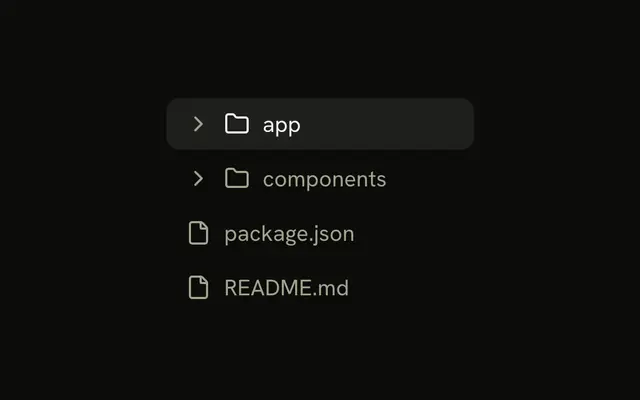
The files the agent changed show as a tree of folders, each open to start with, and the file the reader picked stays marked.
Use it at the end of a turn that touched several files, so the reader sees where the changes are and opens the one they want. A folder is a Collapsible and a file is a Button, so there is no File Tree component to install in Svelte. For a single file the agent read or edited, use a Tool line instead. For a large tree the reader browses with the arrow keys, with selection and lazy loading, use a Tree View.
Installation
File Tree is a pattern. The command adds the parts it's built from, Collapsible and Button, and the code to copy is the demo's.
Anatomy
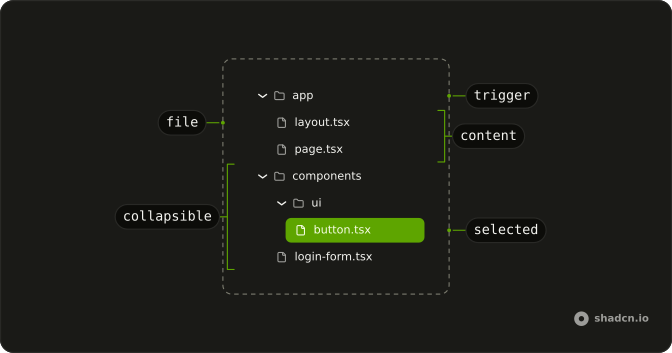
Collapsible (one per folder)
├── CollapsibleTrigger (a ghost Button)
│   ├── ChevronRightIcon
│   └── FolderIcon
└── CollapsibleContent
    └── div (ms-4)
        ├── Collapsible (a folder inside)
        └── Button (one per file)
Usage
Render the nodes recursively, and nest each folder's children in its CollapsibleContent.
<script lang="ts">
import { ChevronRightIcon, FileIcon, FolderIcon } from "lucide-svelte";
import { Button } from "@/components/ui/button";
import {
  Collapsible, CollapsibleContent, CollapsibleTrigger,
} from "@/components/ui/collapsible";
</script>
interface FileNode {
  children?: FileNode[];
  name: string;
  path: string;
  type: "file" | "folder";
}

export function FileTreeNode(props: {
  node: FileNode;
  onSelect: (path: string) => void;
}) {
  const { node, onSelect } = props;

  if (node.type === "folder") {
    return (
      <Collapsible defaultOpen>
        <CollapsibleTrigger asChild>
          <Button className="w-full justify-start" size="sm" variant="ghost">
            <ChevronRightIcon
              aria-hidden="true"
              className="transition-transform group-aria-expanded/button:rotate-90 rtl:-scale-x-100 rtl:group-aria-expanded/button:-rotate-90"
            />
            <FolderIcon aria-hidden="true" />
            {node.name}
          </Button>
        </CollapsibleTrigger>
        <CollapsibleContent>
          <div className="ms-4 flex flex-col">
            {node.children?.map((child) => (
              <FileTreeNode key={child.path} node={child} onSelect={onSelect} />
            ))}
          </div>
        </CollapsibleContent>
      </Collapsible>
    );
  }

  return (
    <Button
      className="w-full justify-start"
      onClick={() => onSelect(node.path)}
      size="sm"
      variant="ghost"
    >
      <FileIcon aria-hidden="true" />
      {node.name}
    </Button>
  );
}
The chevron turns on the trigger's own aria-expanded, through the Button's group/button, so a closed folder inside an open one keeps its chevron pointing at the name. It points to the reading end, and down once open, in both directions. The demo marks the picked file with aria-current and the accent background, and its folder buttons keep the ghost hover instead of Button's open fill. See Collapsible.
AI SDK
The tree comes from the paths the agent wrote. Collect them from the turn's tool parts (here a writeFile tool with a path input), then fold the flat paths into folders.
const paths = message.parts.flatMap((part) =>
  part.type === "tool-writeFile" && part.state === "output-available"
    ? [part.input.path]
    : []
);
/** "app/page.tsx" and "app/layout.tsx" become the app folder with two files. */
function toTree(paths: string[]): FileNode[] {
const root: FileNode[] = [];
for (const path of paths) {
const names = path.split("/");
let level = root;
names.forEach((name, index) => {
const at = names.slice(0, index + 1).join("/");
if (index === names.length - 1) {
level.push({ name, path: at, type: "file" });
return;
}
let folder = level.find(
(node) => node.type === "folder" && node.path === at
);
if (!folder) {
folder = { children: [], name, path: at, type: "folder" };
level.push(folder);
}
folder.children ??= [];
level = folder.children;
});
}
return root;
}The parts' shape is the AI SDK's own on every target, so the same code reads useChat's messages in React and Chat's in Vue and Svelte.
Migrating from AI SDK Elements
AI SDK Elements is for React. In Svelte, start from the demo above: its folders and files are all there is to File Tree.
FAQ
What does installing File Tree add in Svelte?
Collapsible and Button, the two parts the tree is built from. File Tree is a pattern, so no file-tree file lands in your ui folder: copy the demo's code into your own component and give it the agent's paths. The command uses the shadcn-svelte CLI.
When should I use Tree View instead?
When the tree is something to browse rather than a short list of changes: hundreds of nodes, arrow-key navigation, multiple selection, or children loaded on demand. Tree View has a tree's roles and keyboard. File Tree is a handful of folders the reader opens with a click.
How does the keyboard work?
Every folder and file is a button, so Tab moves through them in order, and Enter or Space opens or closes a folder or picks a file. A closed folder's files are out of the tab order. There are no arrow keys, as in any list of buttons.
How is the picked file shown?
The demo keeps the picked path in state, gives its Button the accent background, and sets aria-current on it so assistive tech hears which one is current. Opening that file in a panel or a Code Block is up to you.
Can folders start closed?
Yes. Drop defaultOpen from the folder's Collapsible, or set it only for the folders on the way to the changed files. Open is the right default for an agent's changes: the reader came to see the files, not the folders.
Does the tree work right to left?
Yes. The children are indented with ms-4, which follows the reading direction, and the chevron is flipped so a closed folder points at its name. An open folder's chevron points down in both directions.
Is this the same as AI SDK Elements' File Tree?
It does the same job without a wrapper: a folder was a FileTreeFolder and is now a Collapsible, and a file was a FileTreeFile and is now a Button. The Migrating from AI SDK Elements section has a prompt that rebuilds the old file on these parts and keeps its exports.
API Reference
File Tree has no props of its own. Each folder is a Collapsible: defaultOpen and the trigger and content are Collapsible's. Each folder's trigger and each file is a Button, with variant and size from Button.