shadcn.io is an independent project built on shadcn/ui
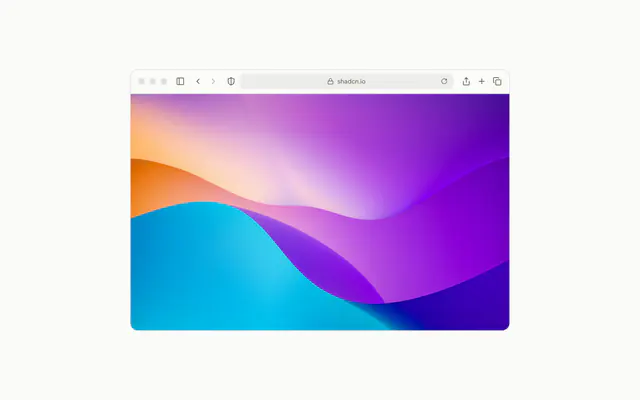
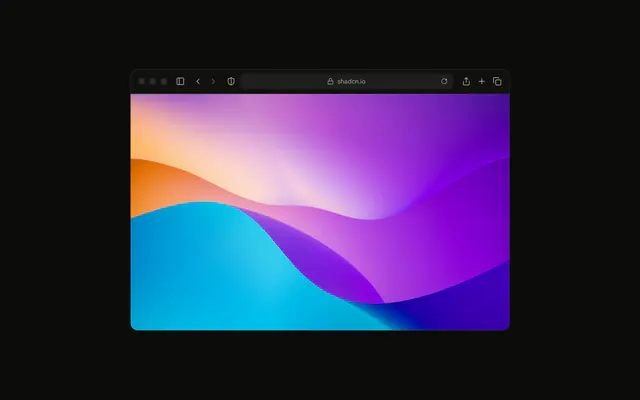
Two pictures share one frame, and a divider decides how much of each shows.
Use it when the difference between two versions is the point: an edit, a redesign, a restored photo. Two pictures to look at one after the other are a Carousel. In Solid, the divider is a slider with its own keys, and in right-to-left text the start layer sits on the right.
Installation
Anatomy

Comparison
├── ComparisonItem (position="start")
├── ComparisonItem (position="end")
└── ComparisonHandle
Usage
import {
  Comparison, ComparisonHandle, ComparisonItem,
} from "@/components/ui/comparison";<Comparison class="aspect-video max-w-lg rounded-xl">
<ComparisonItem position="start">
<img
alt="Before: the valley in black and white"
class="size-full object-cover grayscale"
src="/valley.jpg"
/>
</ComparisonItem>
<ComparisonItem position="end">
<img
alt="After: the valley in colour"
class="size-full object-cover"
src="/valley.jpg"
/>
</ComparisonItem>
<ComparisonHandle />
</Comparison>Accessibility
ComparisonHandle is a slider (role="slider", 0 to 100, its value read as a percentage), labelled "Divider position" unless you pass aria-label. The arrows move the divider the way they point, so in right-to-left text the right arrow lowers the value. Each layer keeps its own alt; both stay in the reading order whatever the divider hides.
- Arrow Right
- Move the divider right by
step. - Arrow Left
- Move the divider left by
step. - Arrow Up
- Move the divider toward the end.
- Arrow Down
- Move the divider toward the start.
- Shift+Arrow Right
- Move it ten steps at once (any arrow).
- Page Up
- Move it ten steps toward the end.
- Page Down
- Move it ten steps toward the start.
- Home
- Show only the end layer.
- End
- Show only the start layer.
Demos
Hover
With mode set to hover, the divider follows a mouse with no press, and the grip only shows while the handle has keyboard focus. It's quicker to scan, less precise to stop. A finger still drags, since a touch screen has no hover.
Custom Handle
Children replace the line and the grip: here a thin rule and a round knob. The handle still places itself, takes the keys and stays a slider, so draw your own focus style with group-focus-visible/comparison-handle:, as the knob does.
Controlled
value and onValueChange hold the position, from 0 at the start edge to 100 at the end. The buttons below set it to a stop, and the readout follows a drag. onValueChangeEnd fires once a drag or a key press ends, for work that shouldn't run on every move.
Content
The layers can be anything, not only images: a dashed wireframe on the start side, the finished card on the end side, laid out alike so the divider lines them up. The frame is 16:9 unless you say otherwise (aspect-video); this one is 4:3. The layers don't take the pointer, so links and buttons inside them aren't clickable.
FAQ
What's the difference between drag and hover mode?
drag, the default, moves the divider while a pointer is pressed, and a click jumps it to that spot. hover follows a mouse with no press, which is faster to scan and harder to hold still. Touch drags in both modes. The Hover demo shows the second.
Does Comparison work on phones?
Yes. A finger drags the divider across the frame, and scrolling up and down still works because the frame only takes sideways moves (touch-action: pan-y). The handle is also a slider for keyboards and screen readers, so it works without a pointer at all.
Which side is ComparisonItem position start in Solid?
start shows on the divider's start side and end on its end side: left and right in left-to-right text, right and left in right-to-left. The value counts from the start edge, so 25 shows a quarter of the start layer.
How do I change the divider's look?
Pass children to ComparisonHandle and they replace the line and the grip. The handle keeps its place, its keys and its slider role. Give your knob a focus style through group-focus-visible/comparison-handle:, as the Custom Handle demo does, so keyboard users can see it.
How do I read or set the divider's position?
Pass value and onValueChange to Comparison, as the Controlled demo does, or only defaultValue to start somewhere other than 50. onValueChangeEnd gets the position when a drag or a key press ends. The position is also the --comparison-position CSS variable on the frame.
API Reference
Comparison
value?number
The divider's position, in percent from the start edge (controlled).
defaultValue?number
Where the divider starts when uncontrolled, in percent from the start edge.
- Default
50
onValueChange?(value: number) → void
Called with the new position, in percent, as the divider moves.
- Parameters
value– number- Returns
void
mode?ComparisonMode
drag moves the divider while a pointer is pressed (a click jumps it
there); hover follows a mouse without a press. Touch drags in both.
- Default
"drag"
onValueChangeEnd?(value: number) → void
Called with the position once a drag or a key press ends.
- Parameters
value– number- Returns
void
step?number
How far an arrow key moves the divider, in percent; Shift, Page Up and Page Down move ten times as far.
- Default
1
class?string
Merged with the part's classes.
--comparison-positionstring
The divider's place from the start edge (50%).
ComparisonItem
<div> data-slot="comparison-item"
position"start" | "end"
The divider's side this layer shows on: start (left in left-to-right
text) or end.
- Type
"start" | "end"
class?string
Merged with the part's classes.
data-position?string
Mirrors position.
--comparison-positionstring
The divider's place from the start edge (50%).
ComparisonHandle
<div> data-slot="comparison-handle"
class?string
Merged with the part's classes.
--comparison-positionstring
The divider's place from the start edge (50%).