shadcn.io is not affiliated with official shadcn/ui
Draw a signature in a box with a pointer or a finger. The strokes stay until you submit or clear them.
Use it when the form needs a drawing, such as consent or signing for a delivery. A typed name belongs in an Input. In Vue, Ark UI can leave the strokes uncontrolled until you need an image.
Installation
Anatomy
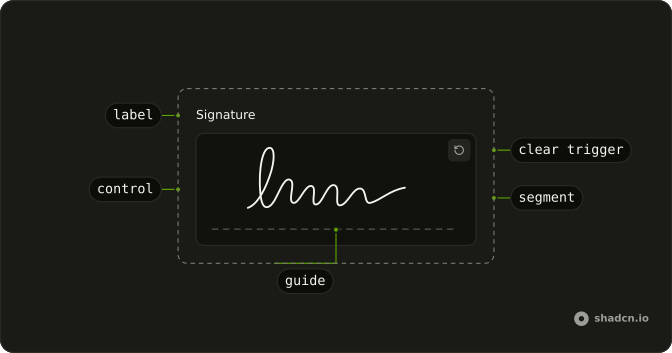
SignaturePad
├── SignaturePadControl
├── SignaturePadSegment
│   └── SignaturePadSegmentPath
├── SignaturePadGuide
├── SignaturePadClearTrigger
└── SignaturePadLabel
Usage
<script setup lang="ts">
import { SignaturePad } from "@/components/ui/signature-pad";
</script>
const SignaturePadDemo = () => <SignaturePad className="w-full max-w-md" />;Accessibility
- Enter
- Activate the focused control.
- Space
- Activate the focused control.
Demos
Field
The pad sits in a Field with the label Signature and a helper that says to draw in the box. Use that wrapper when the signature is one question among text fields and should share their label pattern. The helper is the instruction, since the pad has no placeholder to lean on. Give the pad a name when the drawing should submit with the form.
Image Preview
When a stroke ends, onDrawEnd asks for a PNG data URL and shows that image under the pad. The preview updates on the committed stroke, not while the pointer is still down. Use this when you need a bitmap to upload or store, rather than the path strings. The pad can still submit through its hidden input if you set name, and the preview is only a copy.
FAQ
How do I control Signature Pad strokes in Vue?
The drawing is an array of path strings. Leave it uncontrolled for a normal signature, or pass the paths back when you need them in state, since defaultPaths sets the first strokes only.
Pass paths for a controlled pad, and @draw-end receives details.paths after each stroke is committed.
How do I turn a Signature Pad into an image?
Wait until the stroke ends, then ask the pad for a data URL. The Image Preview demo shows that image under the pad. A preview while the pointer is still down is the in-progress stroke, not the committed image.
Listen to @draw-end, and calling details.getDataUrl with image/png resolves to a data URL you can put on an image.
How do I submit a Signature Pad with a form?
Set name on Signature Pad so the signature is included when the form submits. The pad renders a hidden input under that name. Set required when a signature is mandatory. You can still listen for the image if the page needs a preview as well.
How do I clear a Signature Pad?
A clear button is already rendered in the corner, so you do not add one, and it removes the strokes. Enter or Space activates that button when it has focus. Set readOnly to keep a drawing visible without edits, or disabled to block input and fade the pad.
What is the difference between a read-only and a disabled Signature Pad?
readOnly keeps the strokes on screen and ignores new pointer input. The clear button still works in that state. disabled blocks input, fades the pad, and disables the clear button. Use readOnly when the signature should stay visible but not grow, and disabled when the field is not available.
Why does the page stay still while I draw on a Signature Pad?
The drawing surface uses touch-none so the page does not scroll while someone draws. Give the pad a real width, since the default height is 10rem. On a phone, keep the pad in view. If the form is long, scroll the form, not the pad, once the stroke has ended.
How do I install Signature Pad in Vue?
Run the command in the Installation section above. It adds Signature Pad to your ui folder. Import from that folder when the command finishes, instead of copying the source by hand, and rerun the command later if you want the latest files. The command uses the shadcn-vue CLI.
API Reference
SignaturePad
<div> data-slot="signature-pad"
defaultPaths?string[]
The default paths of the signature pad. Use when you don't need to control the paths of the signature pad.
dir?"ltr" | "rtl"
The document's text/writing direction.
- Type
"ltr" | "rtl"- Default
"ltr"
disabled?boolean
Whether the signature pad is disabled.
drawing?object
The drawing options.
- Type
{ fill?: string }- Default
"{ size: 2, simulatePressure: true }"
id?string
The unique identifier of the machine.
ids?object
The ids of the signature pad elements. Useful for composition.
- Type
{ root?: string; control?: string; hiddenInput?: string; label?: string }
name?string
The name of the signature pad. Useful for form submission.
paths?string[]
The controlled paths of the signature pad.
readOnly?boolean
Whether the signature pad is read-only.
required?boolean
Whether the signature pad is required.
translations?object
The translations of the signature pad. Useful for internationalization.
- Type
{ clearTrigger?: string; control?: string }
asChild?boolean
Use the provided child element as the default rendered element, combining their props and behavior.
class?string
Merged with the part's classes.
@draw(details: DrawDetails) → void
Callback when the signature pad is drawing or the committed paths change.
paths contains only committed strokes; use currentPath for the in-progress stroke.
- Parameters
details– { paths: string[]; currentPath: string | null }- Returns
void
@draw-end(details: DrawEndDetails) → void
Callback when the signature pad is done drawing.
- Parameters
details– { paths: string[]; getDataUrl: (type: DataUrlType, quality?: number) → Promise<string> }- Returns
void
data-disabled?string
Present when disabled.
SignaturePadControl
<div> data-slot="signature-pad-control"
asChild?boolean
Use the provided child element as the default rendered element, combining their props and behavior.
data-disabled?string
Present when disabled.
SignaturePadSegment
<svg> data-slot="signature-pad-segment"
asChild?boolean
Use the provided child element as the default rendered element, combining their props and behavior.
SignaturePadGuide
<div> data-slot="signature-pad-guide"
asChild?boolean
Use the provided child element as the default rendered element, combining their props and behavior.
data-disabled?string
Present when disabled.
SignaturePadClearTrigger
<button> data-slot="signature-pad-clear"
asChild?boolean
Use the provided child element as the default rendered element, combining their props and behavior.
useSignaturePad
defaultPaths?string[]
The default paths of the signature pad. Use when you don't need to control the paths of the signature pad.
disabled?boolean
Whether the signature pad is disabled.
drawing?object
The drawing options.
- Type
{ fill?: string }- Default
"{ size: 2, simulatePressure: true }"
id?string
The unique identifier of the machine.
ids?object
The ids of the signature pad elements. Useful for composition.
- Type
{ root?: string; control?: string; hiddenInput?: string; label?: string }
name?string
The name of the signature pad. Useful for form submission.
paths?string[]
The controlled paths of the signature pad.
readOnly?boolean
Whether the signature pad is read-only.
required?boolean
Whether the signature pad is required.
translations?object
The translations of the signature pad. Useful for internationalization.
- Type
{ clearTrigger?: string; control?: string }
@draw(details: DrawDetails) → void
Callback when the signature pad is drawing or the committed paths change.
paths contains only committed strokes; use currentPath for the in-progress stroke.
- Parameters
details– { paths: string[]; currentPath: string | null }- Returns
void
@draw-end(details: DrawEndDetails) → void
Callback when the signature pad is done drawing.
- Parameters
details– { paths: string[]; getDataUrl: (type: DataUrlType, quality?: number) → Promise<string> }- Returns
void
With other components
Button
ButtonsClear or save
Field
InputsLabel the signature
Dialog
OverlaysSign in a modal
Card
LayoutThe pad on a surface
Label
InputsWhose signature
Tooltip
OverlaysSign inside the box
Related
File Upload
InputsA signature as a file
Attachment
MediaThe saved image
Textarea
InputsType a name instead
Input
InputsA typed signature
Progress
FeedbackSaving the stroke
Alert
FeedbackThe signature is required