shadcn.io is an independent project built on shadcn/ui
A small playground: files on one side, the page they make on the other, and a console for what its scripts log.
Use it in a tutorial or a docs page where the reader should change the code and see the result at once. It runs HTML, CSS and JavaScript, not a React or npm project: there is no bundler and no package install, so import from npm and JSX won't run. To let the reader edit code that doesn't run, use a Code Editor alone. In Vue, each part reads the files from SandboxProvider, so you lay them out with tabs, side by side, or both.
Installation
The install also adds Code Editor, Tabs and Button.
Anatomy
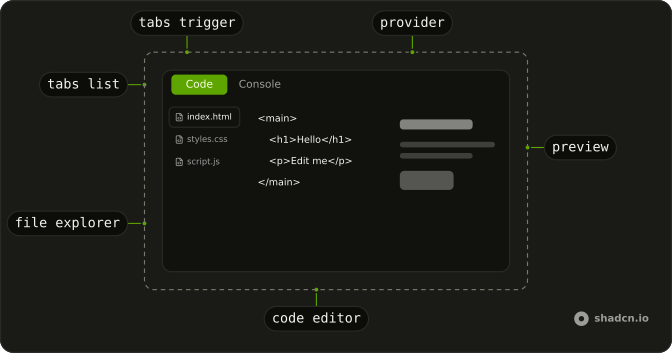
SandboxProvider
└── SandboxTabs
    ├── SandboxTabsList
    │   └── SandboxTabsTrigger
    └── SandboxTabsContent
        └── SandboxLayout
            ├── SandboxFileExplorer
            ├── SandboxCodeEditor
            ├── SandboxPreview
            └── SandboxConsole
SandboxProvider holds the files and draws the frame. The tabs are optional: put SandboxLayout straight inside the provider for a side-by-side view.
Usage
<script setup lang="ts">
import {
  SandboxCodeEditor, SandboxLayout, SandboxPreview, SandboxProvider,
} from "@/components/ui/sandbox";
</script>
const files = {
  "/index.html": `<h1>Hello</h1>`,
  "/styles.css": `h1 { font-family: system-ui; }`,
  "/script.js": `console.log("ready")`,
};

<SandboxProvider className="h-96" defaultFiles={files}>
  <SandboxLayout>
    <SandboxCodeEditor showTabs />
    <SandboxPreview />
  </SandboxLayout>
</SandboxProvider>;
How it runs
- One page. The preview is the first
.htmlfile. A<link>to one of the CSS files and a<script src>to one of the JavaScript files are inlined where they are; files it doesn't link are added anyway, CSS to the head and JavaScript to the end of the body. - A sandboxed frame. The page runs in an
iframewithsandbox="allow-scripts"(plus forms and dialogs) and no same-origin access, so its scripts can't read your page, its cookies or its storage. - Again after each edit. The preview runs again 500 ms after typing stops (
delay), with a clean console. The refresh button runs it again at once. - A console. Each
console.log,info,warn,erroranddebugcall, and every uncaught error, is posted from the frame toSandboxConsole; objects show as JSON. - Nothing to install. No bundler, no service, no network: the files are strings in your page, and only they run.
Demos
Split
A file explorer, the editor with line numbers, and the preview, side by side in one SandboxLayout. It opens on the stylesheet with defaultActiveFile, and the script fills in the heading. Use it on a wide page where the reader should see the code and the page at once. Below about 670 pixels the panes stack, and the explorer becomes a row.
Console
A store page whose buttons log: an info line, a warning when the cart is empty, and an uncaught error from Pay. The preview and the console share a tab set beside the editor; every panel stays mounted, so the page keeps running and logging while the console is shown. Use a console when the lesson is about what a script does, not how the page looks.
FAQ
What code can Sandbox run?
HTML, CSS and JavaScript as the browser runs them. There is no bundler, so JSX, TypeScript and bare imports such as react or lodash don't run; an import from a full URL that serves an ES module does, in a script with type module. For a React or npm project, link to a hosted playground instead. Sandbox suits lessons, snippets and demos of the web platform.
Is it safe to run code a reader typed?
The code runs in an iframe with the sandbox attribute set to allow scripts, forms and dialogs, without same-origin access. It can't read your page, its cookies, its local storage or the reader's session, and it can't navigate your page. It can still use the network like any page, so don't run code from strangers on a page that holds secrets in the URL.
How do I give Sandbox its files in Vue?
Pass defaultFiles, an object from path to code, such as index.html, styles.css and script.js. To keep the files yourself, pass files and update them in onFilesChange, which gets every file after each edit. defaultActiveFile picks the file the editor opens on. In Vue, listen to @files-change.
Why does a script tag in my files break my component?
A closing script tag inside a string ends the script block that holds it, in an HTML file or a single-file component. You don't need one: Sandbox adds every JavaScript file the page doesn't link to the end of the body. If you do link one, write the closing tag as <\/script> in your source.
Why is my Sandbox console empty?
The console shows what the preview logs, so a SandboxPreview has to be on the page, even in a tab that's hidden. SandboxTabs keeps every panel mounted for that reason. The console is cleared each time the preview runs again, after an edit or the refresh button. Logs from another sandbox on the same page never mix in.
How do I lay out the Sandbox parts?
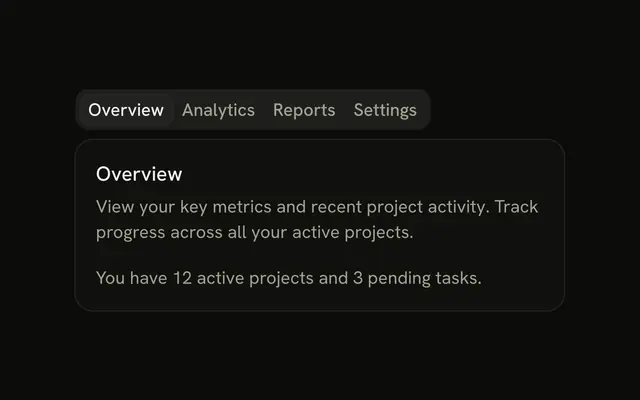
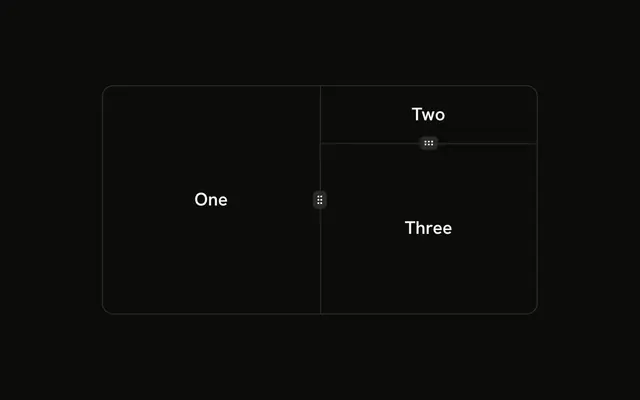
Put the parts you want in SandboxLayout: side by side on a wide sandbox, stacked on a narrow one. Use SandboxTabs to switch between views in the same space, as the first demo does with Code and Preview, or nest tabs in a layout, as the Console demo does. Give SandboxProvider a height; the panes fill it and scroll.
API Reference
SandboxProvider
files?SandboxFiles
The files, controlled: HTML, CSS and JavaScript, by path. Two-way with v-model:files.
defaultFiles?SandboxFiles
The files when it starts, uncontrolled.
- Default
{}
defaultActiveFile?string
The file the editor opens on. @default the first file.
- Default
""
delay?number
How long the preview waits after the last edit before it runs the files again, in milliseconds.
- Default
500
class?string
Merged with the part's classes.
@files-change(files: SandboxFiles) → void
Called with every file after each edit.
- Parameters
files– SandboxFiles- Returns
void
SandboxLayout
<div> data-slot="sandbox-layout"
class?string
Merged with the part's classes.
SandboxTabs
data-slot="sandbox-tabs"
value?string | null
The controlled selected tab value. Two-way with v-model.
- Type
string | null
defaultValue?string | null
The initial selected tab value when rendered. Use when you don't need to control the selected tab value.
- Type
string | null
activationMode?"manual" | "automatic"
The activation mode of the tabs. Can be manual or automatic
- manual: Tabs are activated when clicked or press enter key.
- automatic: Tabs are activated when receiving focus
- Type
"manual" | "automatic"- Default
"automatic"
composite?boolean
Whether the tab is composite.
deselectable?boolean
Whether the active tab can be deselected when clicking on it.
dir?"ltr" | "rtl"
The document's text/writing direction.
- Type
"ltr" | "rtl"- Default
"ltr"
hideMode?"display-none" | "activity"
How to hide content when mounted but not present.
- display-none: HTML hidden attribute. Effects stay alive.
- activity: React 19 <Activity mode="hidden">. Effects pause. Requires React 19+.
- Type
"display-none" | "activity"- Default
"display-none"
id?string
The unique identifier of the machine.
ids?object
The ids of the elements in the tabs. Useful for composition.
- Type
{ root?: string; trigger?: (value: string) → string; list?: string; content?: (value: string) → string; indicator?: string }
lazyMount?boolean
Whether to enable lazy mounting.
- Default
false
loopFocus?boolean
Whether the keyboard navigation will loop from last tab to first, and vice versa.
- Default
true
navigate?((details: NavigateDetails) → void) | null
Function to navigate to the selected tab when clicking on it. Useful if tab triggers are anchor elements.
- Type
((details: NavigateDetails) → void) | null- Parameters
(details– { value: string; node: HTMLAnchorElement; href: string }- Returns
void) | null
orientation?"horizontal" | "vertical"
The orientation of the tabs. Can be horizontal or vertical
- horizontal: only left and right arrow key navigation will work.
- vertical: only up and down arrow key navigation will work.
- Type
"horizontal" | "vertical"- Default
"horizontal"
translations?object
Specifies the localized strings that identifies the accessibility elements and their states.
- Type
{ listLabel?: string }
unmountOnExit?boolean
Whether to unmount on exit.
- Default
false
asChild?boolean
Use the provided child element as the default rendered element, combining their props and behavior.
class?string
Merged with the part's classes.
@value-change(value: string) → void
Called with the tab chosen.
- Parameters
value– string- Returns
void
@focus-change(details: FocusChangeDetails) → void
Callback to be called when the focused tab changes.
- Type
(details: FocusChangeDetails) → void- Parameters
details– { focusedValue: string }- Returns
void
SandboxTabsList
data-slot="sandbox-tabs-list"
variant?"default" | "line" | "underline"
The visual style. underline is the earlier name of line and still
works. Ark default: default.
- Type
"default" | "line" | "underline"- Default
"line"
asChild?boolean
Use the provided child element as the default rendered element, combining their props and behavior.
class?string
Merged with the part's classes.
SandboxTabsTrigger
data-slot="sandbox-tabs-trigger"
asChild?boolean
Use the provided child element as the default rendered element, combining their props and behavior.
class?string
Merged with the part's classes.
SandboxTabsContent
data-slot="sandbox-tabs-content"
asChild?boolean
Use the provided child element as the default rendered element, combining their props and behavior.
class?string
Merged with the part's classes.
SandboxCodeEditor
<div> data-slot="sandbox-code-editor"
readOnly?boolean
The files can be read and copied, not changed.
- Default
false
showLineNumbers?boolean
Number each line.
- Default
false
showTabs?boolean
A tab per file above the code, to switch files.
- Default
false
wrapContent?boolean
Wrap long lines instead of scrolling sideways.
- Default
false
class?string
Merged with the part's classes.
SandboxFileExplorer
<nav> data-slot="sandbox-file-explorer"
class?string
Merged with the part's classes.
SandboxPreview
<div> data-slot="sandbox-preview"
showRefreshButton?boolean
A button that runs the files again. @default true.
- Default
true
title?string
The frame's accessible name.
- Default
"Preview"
class?string
Merged with the part's classes.
SandboxConsole
<div> data-slot="sandbox-console"
class?string
Merged with the part's classes.
data-level?string
Mirrors level.