shadcn.io is an independent project built on shadcn/ui
A video plays above a control bar drawn in your theme's colours.
Use it for product demos, course videos and clips where the browser's own controls look out of place. A muted loop behind a hero needs no controls: a plain video element with autoplay, muted and loop does it. In Vue, the controls are Buttons and range inputs wired to the video's own events, so the browser still does the playing, the buffering and the captions.
Installation
Anatomy
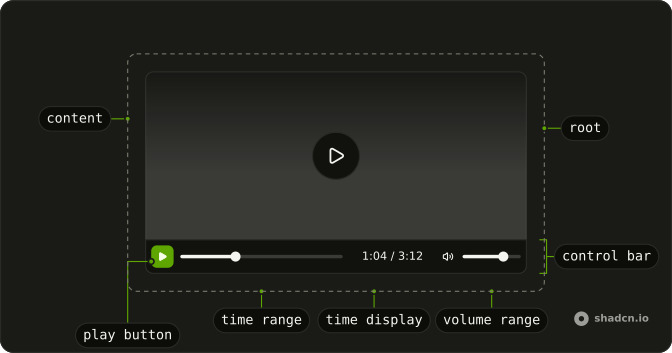
VideoPlayer
├── VideoPlayerContent (video, with track children)
└── VideoPlayerControlBar
    ├── VideoPlayerSeekBackwardButton
    ├── VideoPlayerPlayButton
    ├── VideoPlayerSeekForwardButton
    ├── VideoPlayerTimeRange
    ├── VideoPlayerTimeDisplay
    ├── VideoPlayerCaptionsButton
    ├── VideoPlayerMuteButton
    └── VideoPlayerVolumeRange
Usage
<script setup lang="ts">
import {
  VideoPlayer, VideoPlayerContent, VideoPlayerControlBar,
  VideoPlayerMuteButton, VideoPlayerPlayButton, VideoPlayerTimeDisplay,
  VideoPlayerTimeRange, VideoPlayerVolumeRange,
} from "@/components/ui/video-player";
</script>
<template>
  <VideoPlayer class="max-w-2xl">
    <VideoPlayerContent poster="/intro.webp" src="/intro.mp4" />
    <VideoPlayerControlBar>
      <VideoPlayerPlayButton />
      <VideoPlayerTimeRange />
      <VideoPlayerTimeDisplay showDuration />
      <VideoPlayerMuteButton />
      <VideoPlayerVolumeRange />
    </VideoPlayerControlBar>
  </VideoPlayer>
</template>
Accessibility
Every button has a name that says what it does now (Play or Pause, Mute or Unmute), the captions button is a toggle (aria-pressed), and the two ranges are native range inputs named Seek and Volume, the seek bar reading its time as "1:04 of 3:12". A click on the video plays or pauses it, and the video takes focus too. The control bar stays left to right in right-to-left text, as media controls do: they follow the tape, not the reading direction. The shortcuts work while focus is anywhere inside the player; a focused button keeps Space and Enter, and a focused range keeps the arrows.
- Space
- Play or pause (anywhere but a button or a range).
- K
- Play or pause.
- Arrow Left
- Back 5 seconds.
- Arrow Right
- Forward 5 seconds.
- J
- Back 10 seconds.
- L
- Forward 10 seconds.
- Arrow Up
- Volume up.
- Arrow Down
- Volume down.
- M
- Mute or unmute.
- C
- Turn captions on or off.
- Home
- Go to the start.
- End
- Go to the end.
Demos
Seek
Seek buttons sit on both sides of play, here 15 seconds each way through seekOffset (10 by default). The time counts down with remaining. The video loads nothing until it's played (preload="none"), so the length shows as --:-- until then.
Captions
Captions are the video's own track children, drawn by the browser. default shows them from the start, and VideoPlayerCaptionsButton turns the first captions or subtitles track on and off. A track from another origin needs crossOrigin="anonymous" on the video and CORS on the file, as this one from MDN has.
Overlay
The control bar can float over the picture: absolute, translucent, and shown while the player is hovered, focused or paused (group-data-[state=paused]/video-player:). VideoPlayer sets data-state to playing or paused for styles like this one. Under reduced motion the bar appears without its fade.
Minimal
Pick only the parts you need: a play button and a seek bar, for a short muted loop in a square frame. Each part reads the player from context, so any of them can go anywhere inside VideoPlayer.
FAQ
How do I add my own video to Video Player?
Give VideoPlayerContent a src, or source children for several formats, plus a poster for the frame before it plays. It takes every attribute a video element takes. It loads the video's length on its own (preload="metadata"); pass preload="none" to load nothing until it's played. Any format the browser plays works, mp4 and webm included.
Which controls does Video Player have?
Play and pause, seek backward and forward, a seek bar, the time, captions, mute and volume. Use them all or only the ones you need, in any order inside VideoPlayerControlBar, as the Minimal demo does with two of them.
Which keyboard shortcuts does Video Player have in Vue?
With focus anywhere inside it: Space and K play and pause, the left and right arrows seek 5 seconds, J and L seek 10, the up and down arrows change the volume, M mutes, C toggles captions, Home and End jump to the ends. A focused button keeps Space and Enter, and a focused range keeps its arrows.
How do I add captions to Video Player?
Put a track element with kind="captions" (or subtitles) inside VideoPlayerContent, and default to show it from the start. The browser draws the captions; VideoPlayerCaptionsButton and the C key turn them on and off. A file from another origin needs crossOrigin="anonymous" on the video and CORS on the file.
How does Video Player match my theme?
It's drawn with your theme's tokens: the bar on background, the buttons as ghost Buttons, the ranges in primary on input, the border and radius of a card. Dark mode follows. Pass className to any part to change it, as the Overlay demo does to float the bar over the picture.
Why don't the controls mirror in right-to-left text?
Media controls follow the tape, not the reading direction: the seek bar fills left to right and back points left in any language, as on most players. VideoPlayerControlBar sets dir="ltr" for that reason. Pass dir="rtl" to it if you want the bar mirrored anyway.
How do I install Video Player in Vue?
Run the command in the Installation section on this page. It adds the player's parts to your ui folder, with the Button they're built on and lucide for the icons. It has no media library underneath: the video element does the playing.
The command uses the shadcn-vue CLI.
API Reference
VideoPlayer
class?string
Merged with the part's classes.
VideoPlayerContent
<video> data-slot="video-player-content"
autoPlay?boolean
Starts playing as soon as it can (browsers allow it muted).
crossOrigin?"" | "anonymous" | "use-credentials"
anonymous to load captions tracks from another origin that allows it.
- Type
"" | "anonymous" | "use-credentials"
loop?boolean
Plays it again from the start when it ends.
muted?boolean
Starts it without sound.
poster?string
The image shown before it plays.
preload?"" | "none" | "metadata" | "auto"
How much to load before it plays: none waits for a press, metadata
loads its length, auto may load it all.
- Type
"" | "none" | "metadata" | "auto"- Default
"metadata"
src?string
The video's URL; or give <source> children.
class?string
Merged with the part's classes.
VideoPlayerControlBar
<div> data-slot="video-player-control-bar"
class?string
Merged with the part's classes.
VideoPlayerPlayButton
data-slot="video-player-play-button"
clickEffect?boolean
Apply a click effect to the button.
- Default
true
isLoading?boolean
Show a loading indicator.
- Default
false
asChild?boolean
Use the provided child element as the default rendered element, combining their props and behavior.
class?string
Merged with the part's classes.
VideoPlayerSeekBackwardButton
data-slot="video-player-seek-backward-button"
asChild?boolean
Use the provided child element as the default rendered element, combining their props and behavior.
class?string
Merged with the part's classes.
VideoPlayerSeekForwardButton
data-slot="video-player-seek-forward-button"
asChild?boolean
Use the provided child element as the default rendered element, combining their props and behavior.
class?string
Merged with the part's classes.
--video-player-range-fillstringVideoPlayerTimeRange
<div> data-slot="video-player-time-range"
class?string
Merged with the part's classes.
VideoPlayerTimeDisplay
<span> data-slot="video-player-time-display"
remaining?boolean
Counts down the time left instead of up.
- Default
false
showDuration?boolean
Shows the duration after the time, 0:42 / 3:12.
- Default
false
class?string
Merged with the part's classes.
VideoPlayerMuteButton
data-slot="video-player-mute-button"
clickEffect?boolean
Apply a click effect to the button.
- Default
true
isLoading?boolean
Show a loading indicator.
- Default
false
asChild?boolean
Use the provided child element as the default rendered element, combining their props and behavior.
class?string
Merged with the part's classes.
VideoPlayerVolumeRange
<div> data-slot="video-player-volume-range"
class?string
Merged with the part's classes.
VideoPlayerCaptionsButton
data-slot="video-player-captions-button"
clickEffect?boolean
Apply a click effect to the button.
- Default
true
isLoading?boolean
Show a loading indicator.
- Default
false
asChild?boolean
Use the provided child element as the default rendered element, combining their props and behavior.
class?string
Merged with the part's classes.